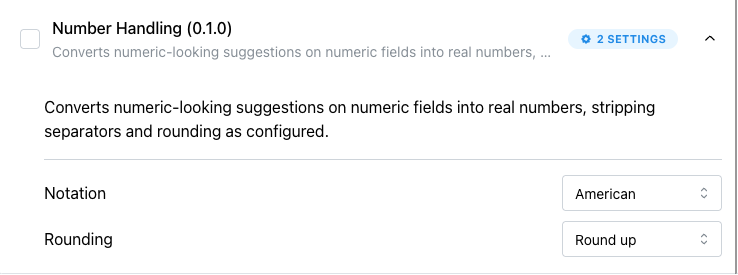
Working with plugins
At a glance
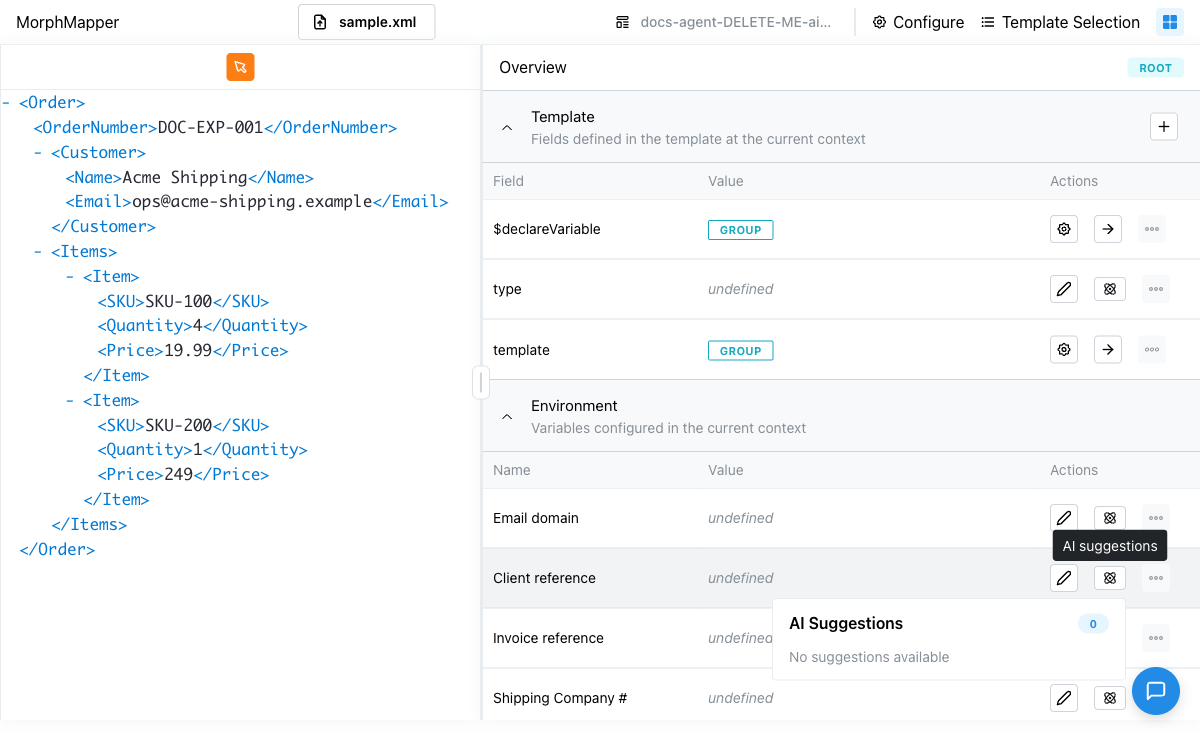
- The atom icon (⚛) next to a field opens AI suggestions for it — click one to see them, click Apply to use one.
- If a field is empty and a plugin marks its suggestion "auto-fill," MorphMapper fills it in for you automatically, no click needed.
- Plugins are turned on per template during setup, and can be revisited from there.
- Re-evaluate in the actions menu runs the plugins again on your current file and refreshes suggestions for the fields you pick.
You chose which plugins are active for this template during setup. This page covers what using them looks like day to day.
Getting a suggestion
Wherever you see the atom icon next to a field — in the entries list, or in an entry's Iterators tab — click it to open suggestions for that specific field. Each suggestion shows a preview of the value it would set, which plugin proposed it (hover to see), and an Apply button. Nothing changes until you click Apply.
Reading a suggestion card
The popover header shows a badge with either Loading while it's fetching, or a count once it's back. Each row below it shows:
| Element | What it shows |
|---|---|
| Value | The proposed value, or a code snippet when the suggestion's type is Code. |
| new badge | Green; marks a suggestion the last re-evaluation of this field found. |
| Type badge | The entry type the suggestion would set the field to — Simple, Code, and so on. |
| Source | Hover the value for a tooltip naming the plugin that produced it. |
| Apply | Applies the suggestion. Nothing changes until you click it. |
Hovering is the only place the source plugin's name appears on this popover. Applying a suggestion whose type doesn't match the field's current type switches the field to that type as well as its value.
If the fetch itself fails, the popover shows the error message in red instead of a suggestion list. If it succeeds but comes back with nothing and the field has no stored suggestions (see below), you get "No suggestions available."
Suggestions are saved with the template
Each field's suggestions are stored per entry and saved with the template, so they're still there when you reopen it. When you fetch again:
- A suggestion you've applied stays in the list even if a later fetch no longer returns it.
- A suggestion you haven't applied stays only if the new fetch returns it again, or if it still produces its value on the current file. Otherwise it's dropped, so suggestions left over from a previous file don't linger — even when the new fetch returns nothing.
- Suggestions are ordered best first by the score the Sort Suggestions plugin gives them. Suggestions without a score keep their order, after the scored ones.
- If the fetch fails, the field keeps the suggestions it already had.
Iterator suggestions
The atom icon on an entry's Iterators tab opens a separate "AI iterator suggestions" popover rather than the field one — same layout (value or snippet, type badge, source on hover, Apply), but it asks plugins for iterator-shaped suggestions (repeating-structure candidates) instead of a single field's value, and applying one fills in the iterator definition rather than a field value. This variant never auto-fills — auto-fill only applies to plain field suggestions.
When it fills a field automatically
Some plugins are allowed to auto-fill: if a field is still empty and one of them offers a suggestion marked for auto-fill, MorphMapper applies it without you clicking anything. This only happens for empty fields, and only before you've started interacting with the template yourself — once you touch something, MorphMapper stops auto-applying so it doesn't overwrite your own changes. If a plugin has an auto-fill setting, you'll find it among that plugin's settings, and you can turn it off there.
If auto-fill seems to have stopped partway through a session:
- Interaction is tracked globally, not per field. One click anywhere on the page turns off auto-apply for every field for the rest of the session, not only the field you clicked into.
- Each field is auto-filled once per loaded file. MorphMapper keys the applied suggestion to the entry's ID plus the current file content. Re-opening a field that already got one won't trigger another, even if you clear the value back out, until a different file is loaded.
- The first eligible suggestion wins. Where several are marked for auto-fill, the first one the plugins return is applied. You don't choose between them the way you do when picking manually.
Re-evaluating suggestions
Re-evaluate in the actions menu runs the plugins again on your current file and gets fresh suggestions for the fields you choose. It opens a Re-evaluate suggestions dialog; the menu item is disabled while MorphMapper is already re-processing your file.
What a re-evaluation does with the fields you select:
- Empty fields are filled with the first suggestion marked for auto-fill.
- Filled fields are replaced only when the value came from a suggestion you applied and the best suggestion is a different one that this re-evaluation found and that is marked for auto-fill. A value you typed yourself is never overwritten; the field only gets new suggestions.
Suggestions the re-evaluation finds carry a new badge. Earlier suggestions that were applied, or that still produce their value on the current file, are kept.
The dialog
| Control | What it does |
|---|---|
| Re-detect iterators | Off by default. Also runs the Iterator plugin again. An empty iterator gets the iterator the plugin detects; an existing iterator keeps its value and only gets new suggestions. The Iterator plugin doesn't run unless this is on. |
| Fields tab | One checkbox per field. Maps, internal fields, and iterators aren't listed. A field is tagged outdated if its suggestions may be stale (see below) and filled if it already has a value. |
| Fields tab buttons | Empty fields, Filled fields, All, and None change the selection; the checkbox at the left selects all or none. When the dialog opens, the empty fields and the outdated fields are selected. |
| Plugins tab | The same list as in setup, with the All checkbox: turn plugins on or off and change their settings for this run. Your changes are applied when you click Run. |
| Run (N) | Starts the re-evaluation for the N selected fields. Disabled while nothing is selected and Re-detect iterators is off. |
| Cancel | Closes the dialog without running anything. |
The dialog closes when you click Run. A "Re-evaluation finished." toast confirms the run, or "Re-evaluation failed:" followed by the reason if it didn't complete.
When an iterator changes
MorphMapper watches the iterators in your template. When you set, change, or remove one, and then stop editing it for about a second and a half, every field below that iterator is marked outdated. Then:
- Empty fields below it are re-evaluated right away.
- If filled fields are affected, an "Iterator changed" notice tells you how many may have outdated suggestions. It stays open until you close it. Review fields opens the Re-evaluate dialog, where those fields are already selected.
A field stops being outdated once it has been evaluated again.
What generates suggestions
Some plugins scan your whole file up front, during the setup screen with the progress bars, and cache what they find. Others only respond when you ask for suggestions on a specific field.
Detecting repeating structures for iterators (see Declaring variables with context), proposing values for a field, and normalizing things like number formatting are handled by different plugins working independently. That's why one field can show several suggestions, each from a different source.
Changing plugin settings mid-session
You're not locked into what you chose during setup. Revisit a plugin's settings from the same screen you configured them on originally, and changes take effect for suggestions going forward.
Each setting a plugin exposes is one of four kinds, and the input matches the kind:
| Setting kind | Input |
|---|---|
| Boolean | A checkbox. Auto-fill toggles are usually this kind. |
| String | A plain text field. |
| Number | A number field. |
| Select | A dropdown with a fixed list of choices. |
Which settings a plugin has, and what each one does, is defined by that plugin. There's no generic list, so check the setting names on this screen.