The workspace
At a glance
- Split screen: your source file on one side, your editing tools on the other, drag the middle to resize.
- The top bar carries the actions that matter across your whole template — Test, Save, Local Save, Deploy — not just the screen you're on.
- A chat assistant lives in the bottom-right corner of every screen in the workspace.
Once setup finishes, you land here — the screen you'll spend most of your time in. Everything else in this guide (entries, the graph editor, code mode, context) happens inside this workspace, in the panel on the right.
The split view
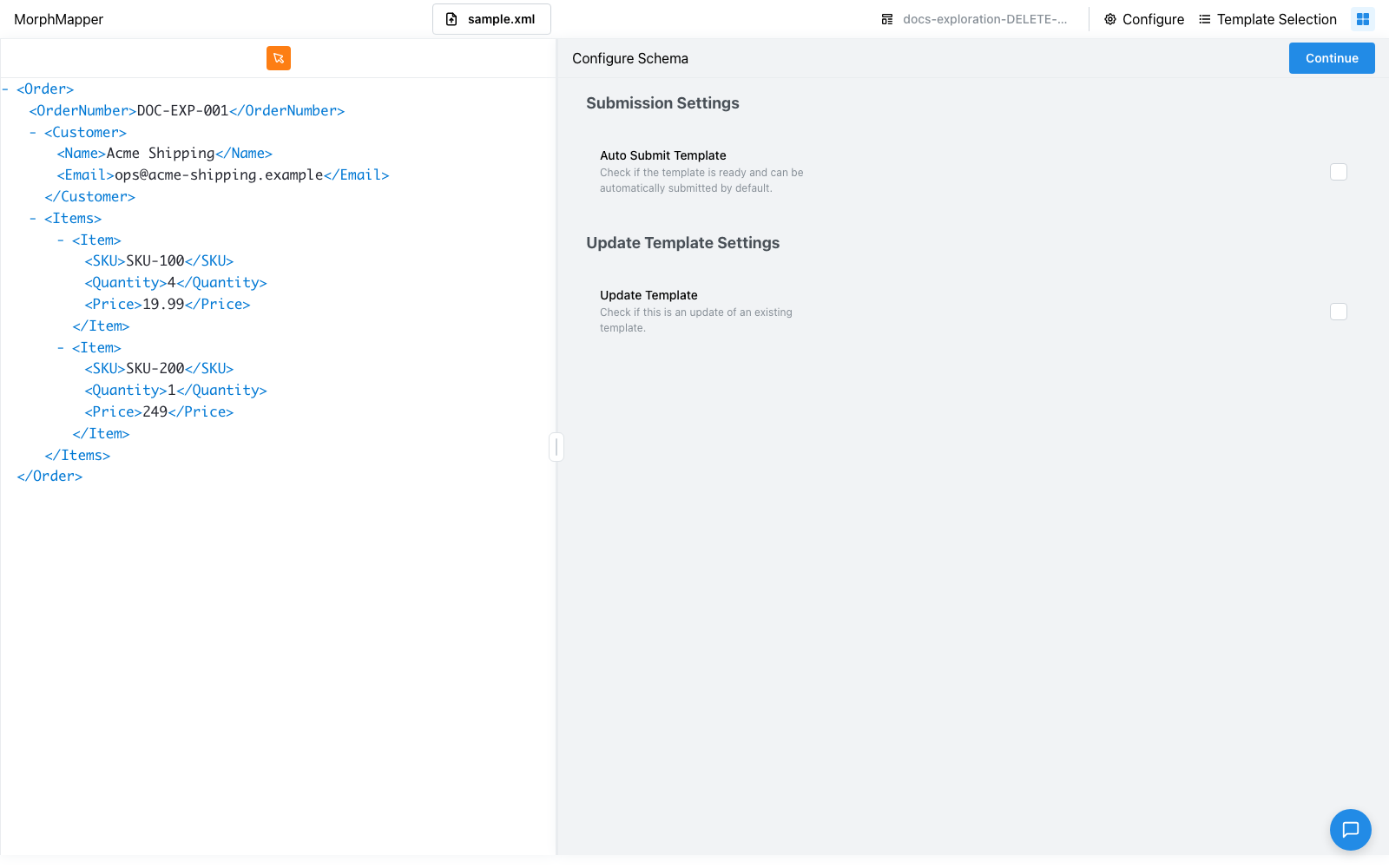
The left side always shows your source file — the same file view covered in Selecting values from the source file. The right side holds whatever you're currently working on: the entries list, the schema configuration, or an individual entry's editor.
Drag the divider between the two sides to resize them. From the top-bar menu (below) you can also switch the whole layout between side-by-side and stacked — useful if your file reads better tall than wide, or the other way around.
The top bar
The bar across the top is present on every screen in the workspace, not just this one, and carries:
The current template's name, so you always know what you're editing.
Configure — a shortcut straight to the schema configuration screen, covered in Configuring a schema.
Template selection — jump back to the template list from Choosing a domain and template, in case you need to switch to a different template. It asks before it takes you out; see Leaving the workspace.
The file selector — a button showing your current file's name (or "Select File" if none is loaded yet). Click it to upload a new file or pick one of this template's recent files, without leaving the workspace or going back through setup — the same recent files covered in Uploading a file and configuring plugins. Switching files this way reprocesses it in the background, the same as the progress indicator below describes.
Unlike setup's file selection screen, this button only accepts one file at a time — there's no multi-file, "generalize across every file" option here, only swapping your one active file. A long file name is truncated to 40 characters with a trailing "…" so the button doesn't grow past its max width; hover it to see the full name in a tooltip. Each recent-file row in this dropdown carries its own download and delete icons too, the same as the setup screen's Recent Files list.
The file selector isn't shown in the
updatedomain; see Theupdatedomain.Help — a standalone question-mark icon button in the top bar, not part of any menu. Opens MorphMapper's documentation in a new tab.
The actions menu (the grid icon), which holds:
Action Effect Test Try the template against your file without saving. Save Save your progress. Local Save Export a copy to your own device. In the updatedomain, it exports the update rules instead.Deploy The last step; covered in Testing, saving, and deploying a template. Re-evaluate Run the plugins again on your current file; covered in Re-evaluating suggestions. Disabled while MorphMapper is re-processing your file. Layout Switch between side-by-side and stacked. A progress indicator, which appears whenever MorphMapper is re-processing your file in the background (for example, after you change a plugin setting, or switch files with the file selector above) — a small progress bar with the latest plugin message under it. Click it to open a dropdown with the "N of M plugins ready" summary and the same per-plugin rows you saw during setup; the rows scroll if there are many.
Something not behaving the way you expect anywhere in the workspace? See Troubleshooting.
Leaving the workspace
Two controls take you out of the workspace, and neither leaves straight away:
- The MorphMapper title, top left — back to domain selection.
- Template selection, in the top bar — back to the template list.
Clicking either opens a confirmation dialog — "Navigate to Domain Selection" or "Navigate to Template Selection" — asking whether to save first:
| Button | What happens |
|---|---|
| Save and continue | Saves the template, then navigates once the save finishes. |
| Continue without saving | Navigates immediately. Unsaved changes are lost. |
Dismissing the dialog instead, with its close button or by clicking outside it, cancels the navigation and leaves you in the workspace.
You land on the step that matches where you were heading: the domain step for domain selection, the template list for template selection.
The chat assistant
A chat button sits in the bottom-right corner of every screen in the workspace (currently marked In development). Opening it gives you four starting points — asking about documentation, requesting a feature, reporting a bug, or getting help with a specific mapping problem. Pick one to unlock the input and type your own follow-up questions. It keeps a history of past conversations you can come back to, and you can export any conversation as a text file. See Using the chat assistant for the full picture — history, feedback, resizing, and more.