Choosing a domain and template
At a glance
- Pick a domain (skipped automatically if your organization only has one).
- Pick an existing template from a sortable list grouped into per-category accordion sections, or create a new one.
- Creating a template means describing the kind of document it maps, not building the mapping itself yet — that comes later.
Choosing a domain
The first screen lists the domains available to your operator — for example Intermodal or Retail. Pick one and confirm to continue. If your operator only has a single domain, MorphMapper skips this screen entirely and selects it for you.
The update domain
If your operator has the update domain and you pick it, the rest of the workflow differs from other domains as follows.
| Where | What's different |
|---|---|
| Setup, file step | The file upload screen is replaced by a Retrieve Orders screen with a Booking Number field. After you stop typing for half a second, MorphMapper looks the number up. The field shows "Valid order found" or "Invalid order", and you can only continue once a valid order is found. The order and its sync order are loaded in place of an uploaded file. |
| Workspace, left pane | The file view is replaced by a side-by-side diff, with Order on the left and SyncOrder on the right. It shows only the fields your template maps under doc, not the whole order. |
| Workspace, top bar | The file selector is hidden. |
| Entry rows | Each row has an Enable/Disable Rule checkbox next to its other actions. |
Local Save in the actions menu also behaves differently: instead of the usual template export, it downloads <template name>-update.json, containing the template's check value and a rules list. Each rule has the entry's name, its path under doc, whether it's enabled (set by the checkbox), its own check value, and any update settings the schema defines for that entry.
Choosing a template
Next you'll see the list of templates already set up for that domain. You can:
- Sort the list — by most recently used (the default), order created, or name (A→Z or Z→A).
- Enable or disable a template with the checkbox on its row, without opening it — a disabled template stays in the list but is skipped wherever the system would otherwise pick it up automatically.
- Pick an existing template to continue working on it, using the pencil icon on its row.
- Create a new template with the button below the list.
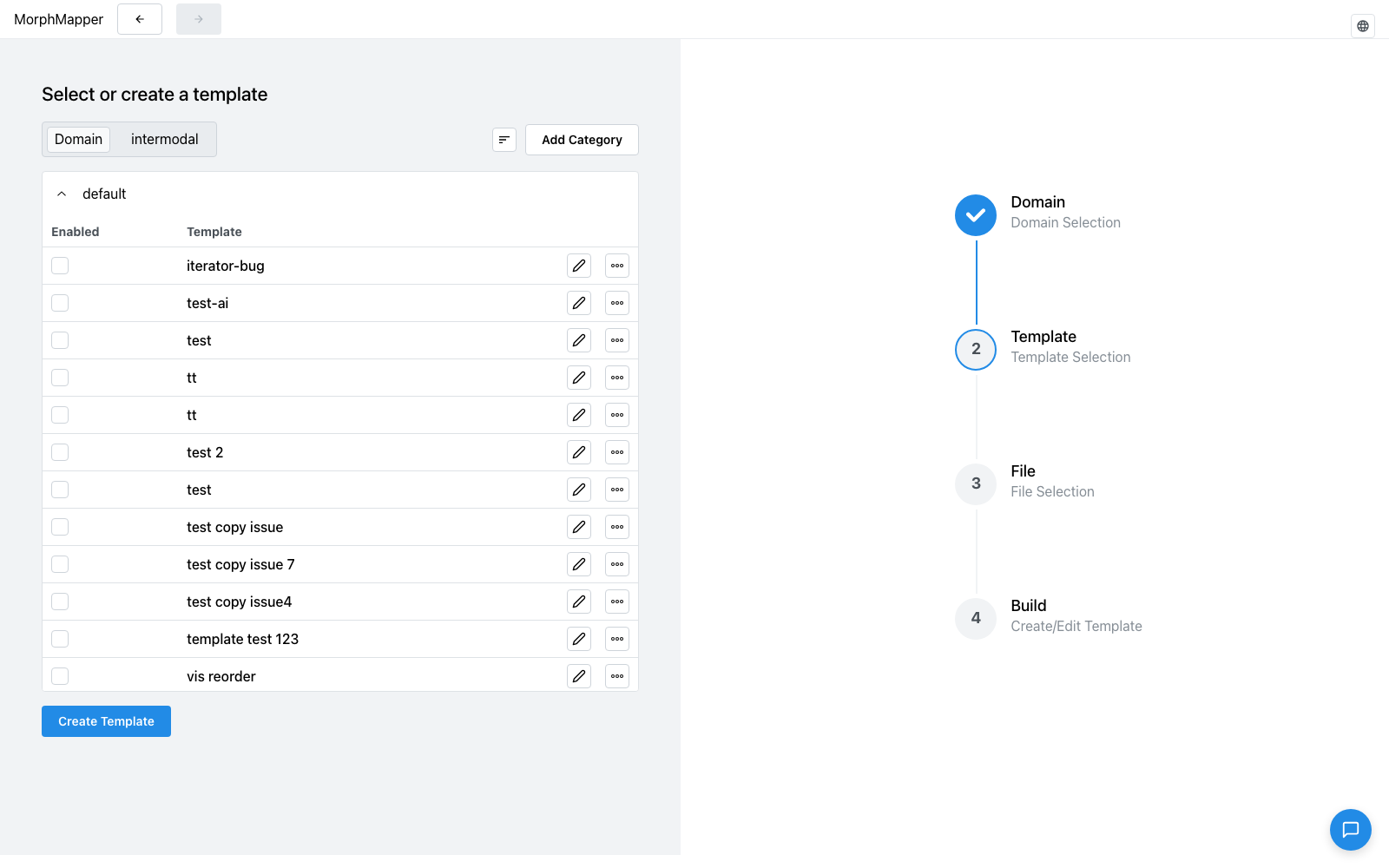
Templates are grouped into per-category accordion sections
There's no separate category filter control. The whole list is one Mantine accordion, with one collapsible section per category (verified against apps/builder-ui/src/components/setup/molecules/template-accordion/template-accordion.tsx and template-accordion-item.tsx). Every category shows in the list at once. Opening one to see its templates closes whichever section was open before, since the accordion only ever keeps one section expanded at a time.
The default category (every organization has one, and can't have a second one named that — see Managing templates) starts expanded when the screen loads; every other category starts collapsed, showing just its name as a clickable header until you open it. Categories are always ordered alphabetically by name, with one exception: a category named "Other" is always pushed to the very end — this matches Managing templates, since it's the same accordion component in both places.
The Sort button (next to Add Category) reorders the templates within each category's section — it doesn't change which category is expanded or reorder the categories themselves.
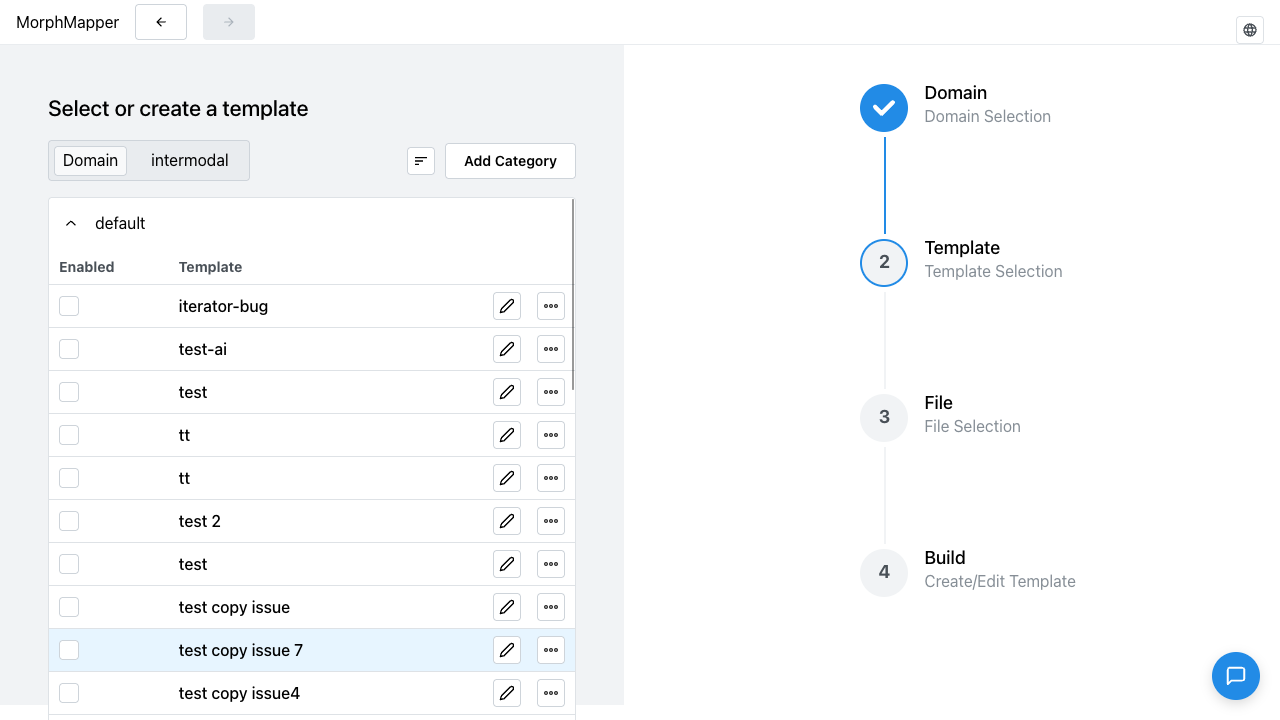
Confirmed live: on a domain with the categories default, test, test23, and testt, the screen loads with default's templates listed and the other three collapsed to bare header buttons; clicking test's header expands it and collapses default back down to its own header.
Creating a new template
Creating a template means describing what kind of document it will map. You build the actual mapping logic later, in the main editor. The form asks for:
| Field | Type | Description |
|---|---|---|
| Name | Text | What the template will be called in the list. |
| Type | Radio | Free-form classification, for example an invoice vs. a packing list. MorphMapper labels this field "Input Source" in the UI, the same label used by the input source field below — they're different settings despite the shared label. |
| Variant | Radio | The file format the template is built for: PDF, table, XML, text, email, or JSON. |
| Schema | Select | Which underlying schema to build on. Becomes available only after you've picked a type and variant. |
| Input source | Select | How the source document will arrive: an uploaded file, an email attachment, or HTTP. Choosing HTTP reveals connection settings — how the connection authenticates and the credential fields that method needs. See Configuring input sources for details of each. |
| Category | Select | Which category to file the template under, for organizing the list you just came from. |
| Priority | Number | Ordering weight within its category. |
| Description | Text | Free text, shown wherever the template is listed. |
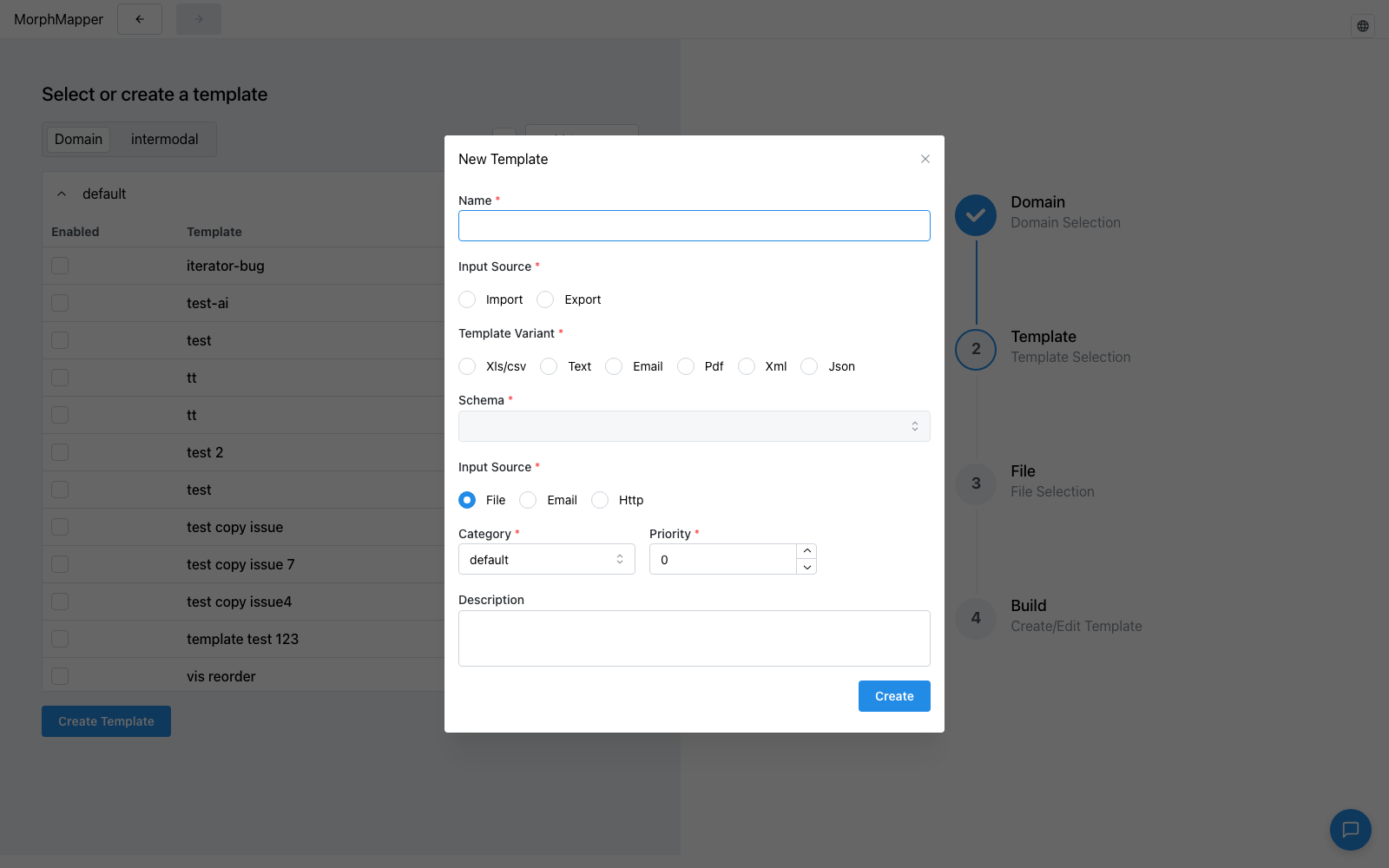
Once created, the new template becomes the one you're setting up — setup continues straight to file upload.
Editing an existing template's settings
A template you already have can have these same settings — name, input source, category, priority, description — updated after the fact, without creating a new one, from the same list. See Managing templates for this, plus duplicating, deleting, and organizing templates into categories.